
How do you make your first AI video?
Create an account, open the studio, choose Kling 3.0 Turbo, write a prompt with one subject and one action, select a short duration and a final aspect ratio, then generate. Review the clip at full size before spending credits on a larger or higher-resolution version.
- Start with a short 720p draft.
- Use one subject, one action and one camera move.
- Generate the final aspect ratio rather than cropping later.
- Review the result before generating more versions.
Which model and format should a beginner use?
Kling 3.0 Turbo is the lower-cost starting point for short 720p tests. Seedance 2.5 is better when you need 1080p, native audio, longer clips or more aspect ratios. Choose 9:16 for social feeds and 16:9 for websites, YouTube or presentations.
Start with Kling 3.0 Turbo and a 4-second draft.
Use 9:16 for Reels, TikTok, Shorts and Stories.
Use 16:9 for websites and landscape video.
Move to Seedance when resolution, audio or length matters.
How do you write a simple first prompt?
Use a short formula: subject, action, camera and what must stay fixed. For example: “slow push toward an unbranded ceramic mug on a wooden table, steam rising, soft morning light, keep the mug shape and table layout stable, no people or text.” Keep the prompt focused on one moment.
- Name the subject and one action.
- Describe one camera movement.
- State what must remain fixed.
- Avoid requesting text, logos or several scenes.
How many credits should a beginner plan for?
Plan for several short drafts rather than one perfect render. A 4-second 720p Kling draft is the lowest-cost way to learn the workflow; longer, 1080p or Seedance generations cost more. Review each draft and adjust the prompt before generating again.
Kling 3.0 Turbo costs 9 credits for 4 seconds and 18 credits for 8 seconds at 720p.
Seedance 2.5 costs 16 credits for 4 seconds at 720p and 18 credits at 1080p.
Expect to use credits on drafts; a perfect first result is not guaranteed.
What should beginners avoid?
Avoid prompts with several scenes, exact text, logos, complex choreography or unrealistic character consistency. Do not expect a full edited video, avatars or lip-sync. Use rights-cleared images, review every frame and add captions, music and final edits in an editor.
Do not ask for multiple cuts in one short clip.
Do not expect exact text, logos or identities.
Use only images you have permission to use.
Finish captions, music and editing outside the studio.
What are good prompt examples?
Strong prompts describe a visible action, one location and one camera direction. Adapt the subject and product details rather than copying a prompt without checking the result.
First product clip
Slow push toward an unbranded ceramic mug on a wooden table, steam rising gently, soft morning light, keep the mug shape and table layout stable, no people, text or logos.
First lifestyle clip
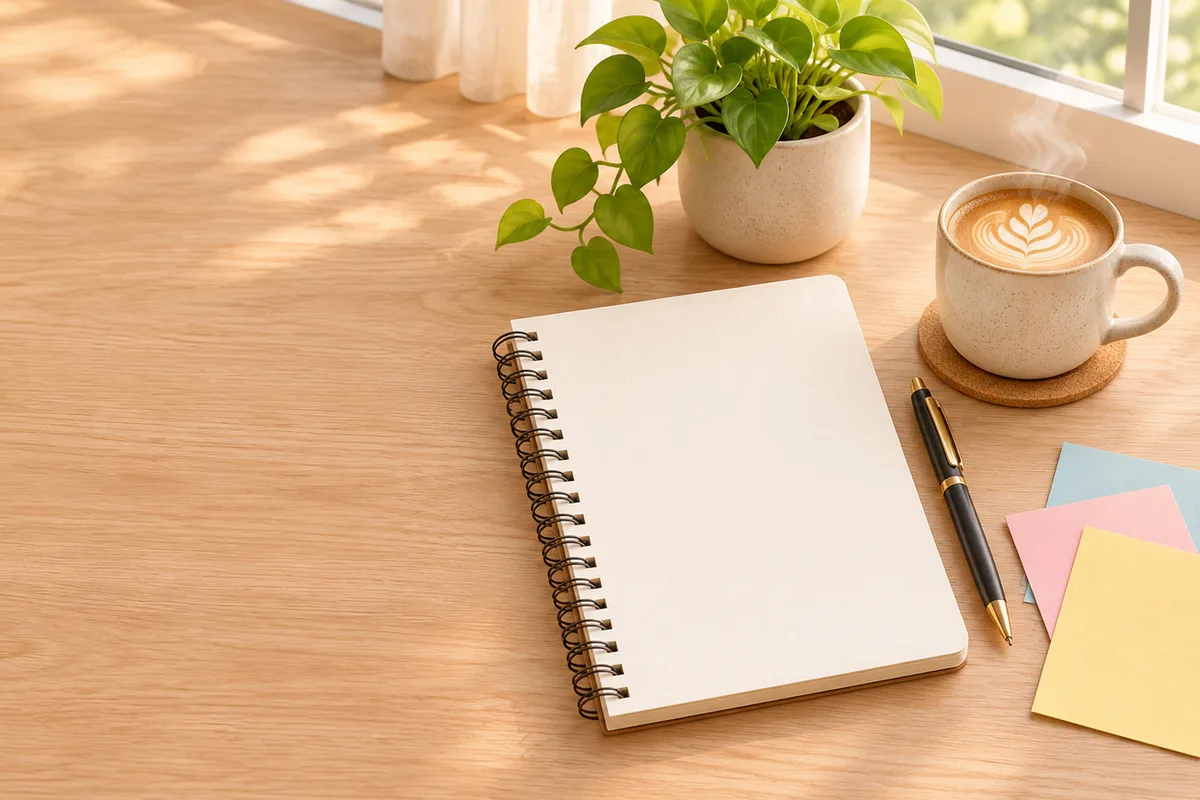
Gentle camera glide across an unbranded sunlit desk with a notebook, plant and coffee cup, soft window light and light curtain movement, calm simple composition, no people or readable text.
First vertical clip
Slow vertical push toward an unbranded product on a clean studio surface, single soft light sweep, crisp mobile-first composition with safe space for captions, no text, logos or people.
Beginner credit comparison
Credit totals use the current Everygen studio settings and are rounded up to a whole credit for each generation.
| Model | Length | Resolution | Credits |
|---|---|---|---|
| Kling 3.0 Turbo | 4 sec | 720p | 9 |
| Kling 3.0 Turbo | 8 sec | 720p | 18 |
| Seedance 2.5 | 4 sec | 720p | 16 |
| Seedance 2.5 | 4 sec | 1080p | 18 |
What matters most before you generate?
- Start with one clear action and one camera direction so the model has a specific motion to solve.
- Upload a clean first frame whenever product shape or a particular scene must stay consistent.
- Test a short, lower-cost generation before committing to a longer Seedance render.
- Review text, hands, product details, audio and disclosure requirements before publishing.